
Selections
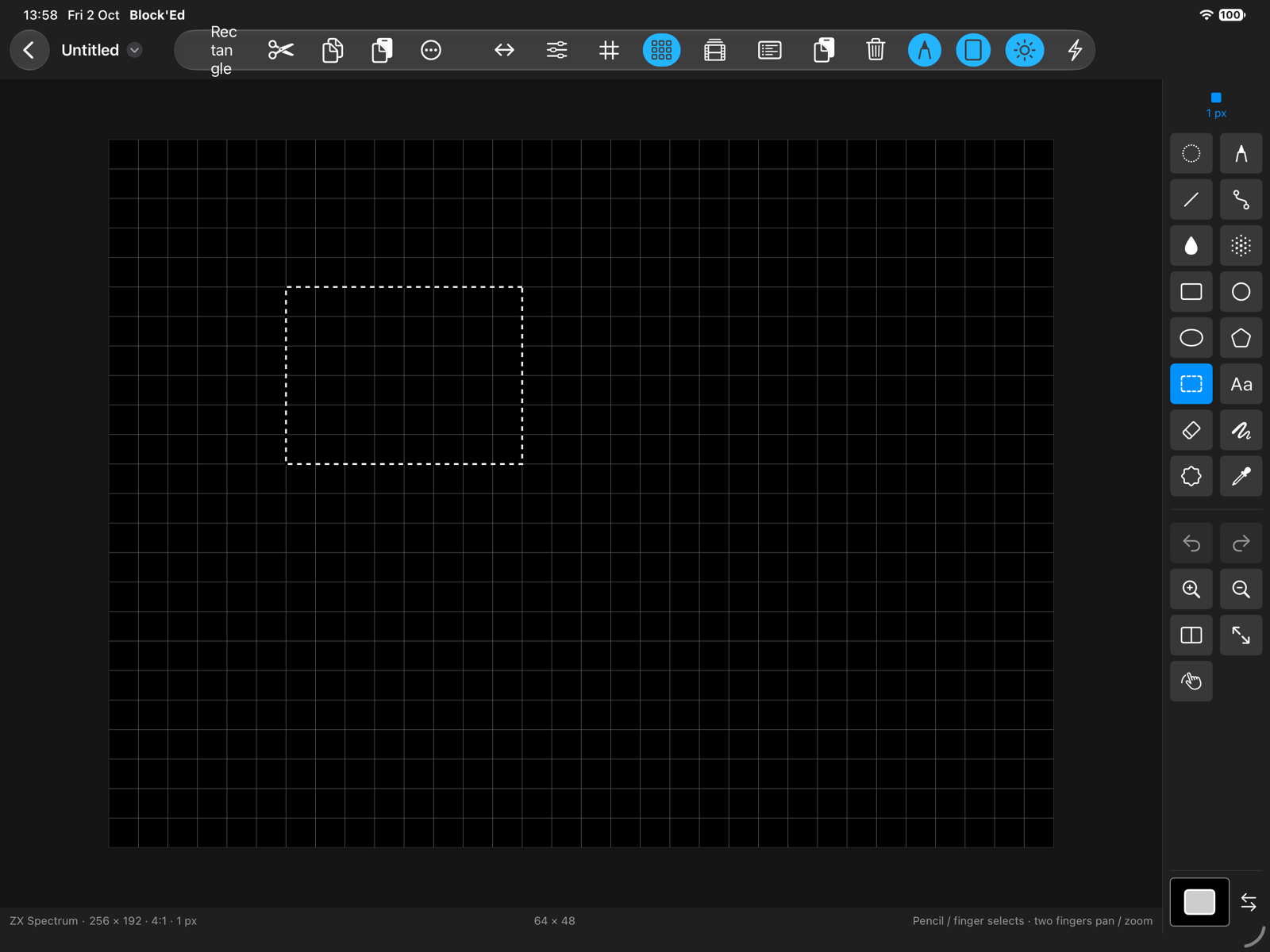
The Select tool marks part of the artwork to cut, copy, recolour or pick up as a brush.
Selecting
The toolbar’s Selection / pickup shape chooses the shape:
- Rectangle selects the box dragged out.
- Freeform selects the outline drawn.
In an attribute mode a selection covers whole cells.
Edit ▸ Select All (⌘A) selects the whole canvas, and Edit ▸ Deselect (⌘D) clears the selection.
Cut, copy and paste
Cut, Copy and Paste are in the toolbar with a rectangle selection, and in the Edit menu: ⌘X, ⌘C and ⌘V.
- Copy puts the selection on the clipboard.
- Cut copies it, then clears it to stored value 0. In an attribute mode the cells’ attributes are kept.
- Paste shows the clipboard as a preview at the selection’s top-left corner, or at the canvas’s top-left corner with no selection. Drag it into place, then apply or cancel it; see Previews.
In an attribute mode a paste moves in whole cells.
A selection pastes into a document whose cells match: attribute artwork into attribute artwork with the same cell size, palette artwork into any palette or pattern mode. Otherwise Paste reports A selection pastes into the same kind of screen: ULA into ULA, Hi-Colour into Hi-Colour, and any palette mode into another.
Selection options
The toolbar’s Selection options menu holds:
- Replace colours…, which swaps colours within the selection; see Colours and Palettes.
- Pick Up as Brush, which makes the selection a custom brush; see Brushes.
- Select All and Deselect.
With a freeform selection, the toolbar shows Pick up in place of Cut, Copy and Paste.
← User Guide · Next: Text »