Projects
A document is a project: one .blked file holding a game’s screens, sprites and tiles as named parts.
Parts
A part is one piece of artwork in one mode, with its own palette, assets, frames and painting options. A new document is a project of one part, in the mode the New Document sheet chose.
| Kind | Modes |
|---|---|
| Screens | ULA, Hi-Colour, Hi-Res, Layer 2 256 colours, Layer 2 16 colours, LoRes 256 colours, LoRes 16 colours |
| Sprites | 4-bit sprites, 8-bit sprites |
| Tiles | 4-bit tiles |
A part’s kind follows from its mode. A project holds any number of parts of each kind. A platform game might hold a title screen, a sprite part for the player and one for the enemies, and a tile part for each world.
Sidebar
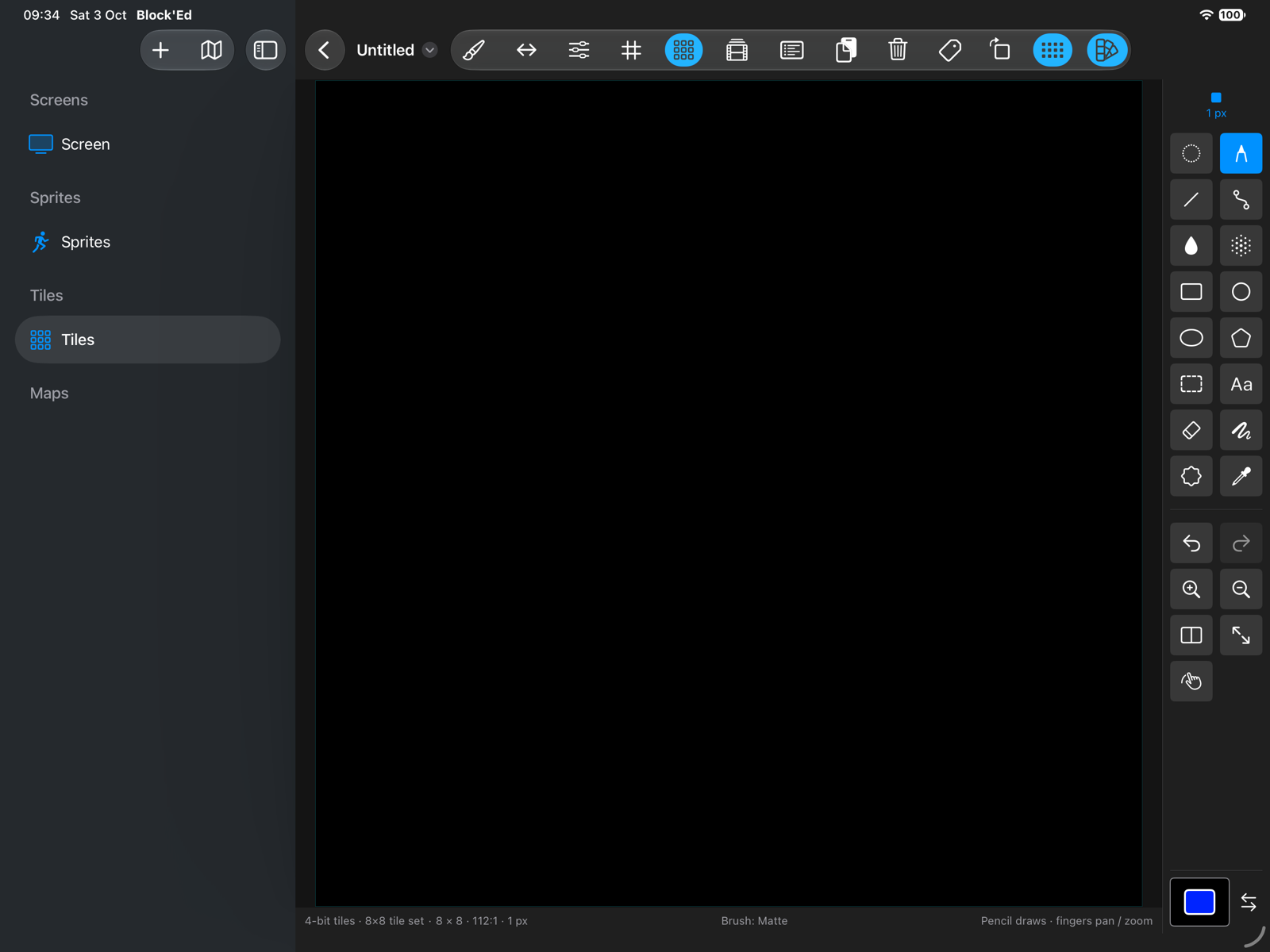
The sidebar lists the parts under Screens, Sprites and Tiles, and the project’s maps under Maps. Selecting a part opens it in the editor, and selecting a map opens it in the map editor; see Maps. Each part keeps its own tool, selection and zoom, so returning to it finds it as it was.
The sidebar button at the left of the toolbar shows and hides the sidebar. A project of one part opens with the sidebar hidden, and a project of several parts with it showing.
Adding a part
+ above the sidebar opens the New Document sheet. Create adds a part in the chosen mode, under its kind, and opens it.
A new part is named after its kind: Screen, Sprites or Tiles. Where a part already has that name, the new one is numbered: Sprites 2.
Renaming, moving and deleting
A part’s context menu, opened by touching and holding it or by Control-clicking it, holds:
| Command | Does |
|---|---|
| Rename… | renames the part; names are unique within a project, ignoring case |
| Move Up | moves the part above the previous part of its kind |
| Move Down | moves the part below the next part of its kind |
| Delete | removes the part |
The only part of a project cannot be deleted, nor can a part a map uses. A blank name, or a name another part has, is refused with a message. Renaming a part renames every map’s reference to it.
Undo
A window has one undo history for all its parts and maps. Undo reverses the latest change, whichever part it was made in, and opens that part. Adding, renaming, moving and deleting a part or a map are each one undo step.
If you draw in Player, then in Enemies, the first Undo removes the drawing in Enemies and the second opens Player and removes the drawing there.
Older files and PNGs
A .blked file saved before projects, and a PNG saved by Block’Ed, open as a project of one part named after the file. The .blked file is saved as a project the next time it changes.
A PNG keeps its format: saving a document opened from a .png writes its first part as a Block’Ed PNG. Parts added to it are not kept in that file.
The project file is specified on File Formats.
← User Guide · Next: Maps »