
Painting Modes
CanA painting mode sets how each stamp of the brush combines with the artwork beneath it.
The mode is chosen with Draw ▸ Painting Mode, or with the toolbar’s Painting mode button when Pencil, Dotted, Line, Curve, Polygon, Rectangle, Circle, Ellipse, Stamp or Airbrush is the tool. It applies to brush strokes, shape outlines, the airbrush and stamps. Fills and text keep their own colour settings. The mode and the colour ramps are saved with the document.
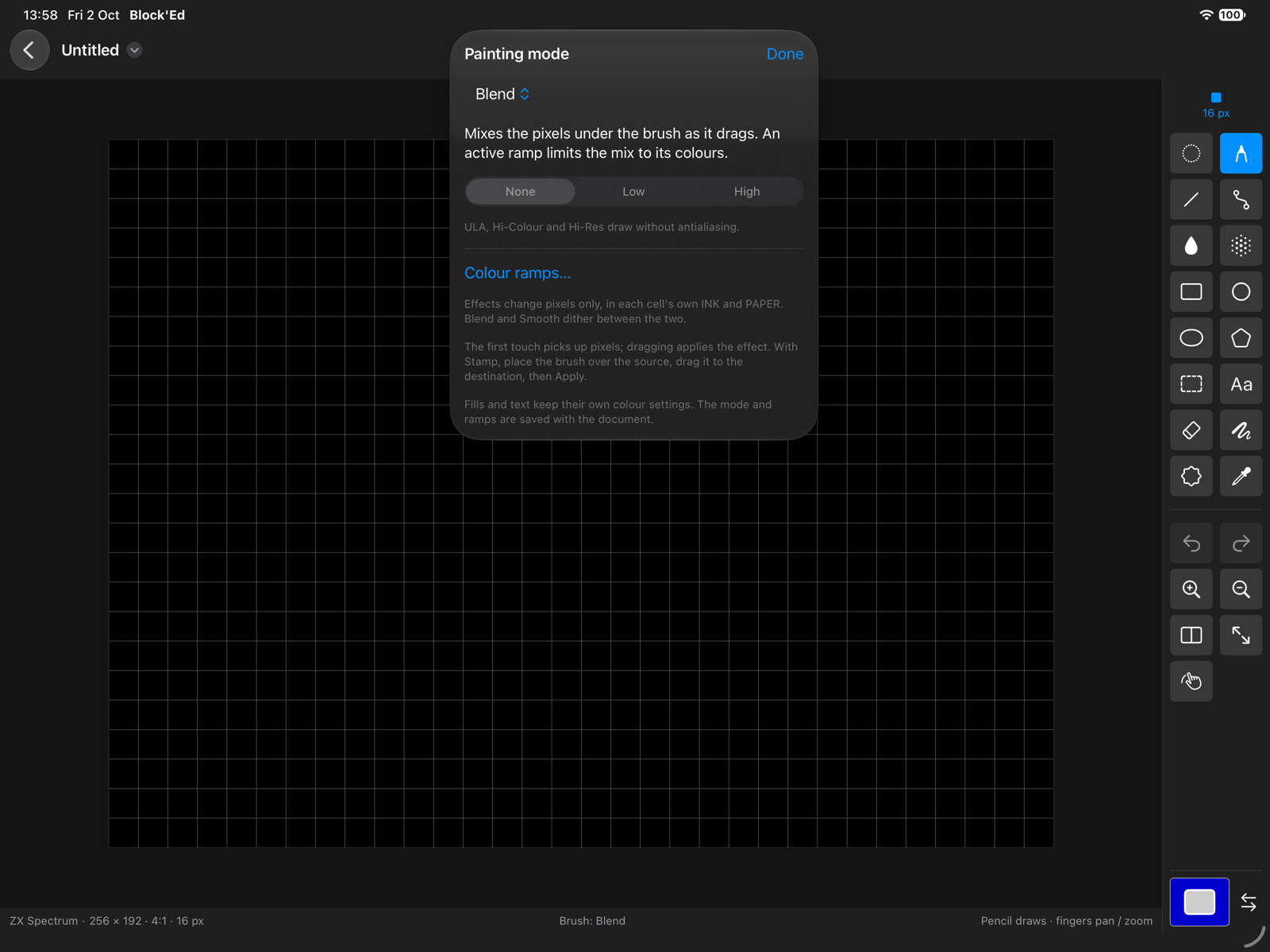
Modes
| Mode | Paints |
|---|---|
| Matte | a custom brush’s own colours, leaving out its transparent colour; a preset brush paints the foreground colour |
| Colour | the brush’s shape in the foreground colour, keeping its transparent areas |
| Opaque | every pixel of a custom brush, its transparent colour included |
| Shade | moves each colour under the brush one step along the active ramp; the brush’s colours are ignored |
| Cycle | the brush’s shape in the active ramp’s colours, one step further along it each stamp |
| MultiCycle | each colour of a custom brush cycled along its own ramp; a preset brush behaves as Cycle |
| Smear | carries the pixels under the brush along the drag |
| Blend | averages the carried colours with those beneath |
| Smooth | averages each pixel under the brush with its neighbours |
In a palette mode, Blend and Smooth take the nearest palette entry to each average. With an active ramp containing the foreground colour, Blend stays within that ramp.
Smear and Blend change nothing at the first point of a stroke, which has nothing yet to carry.
Antialiasing
Antialiasing paints the edge pixels of lines and shapes in palette colours between the drawing colour and the colour beneath, so a slanted edge loses its stair steps. It has three levels:
| Level | Edge pixels |
|---|---|
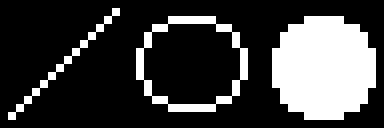
| None | drawn as before, fully in the drawing colour or not at all |
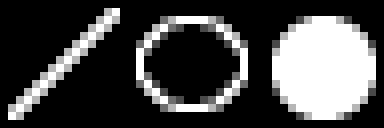
| Low | each sampled at 2 × 2 points |
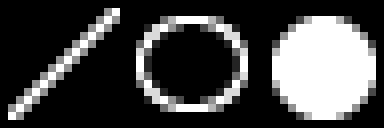
| High | each sampled at 4 × 4 points |
The level is chosen with Antialias in the painting popover, Draw ▸ Antialias, or Draw ▸ Step Antialias (⌥/), which steps None, Low, High. The status line shows Antialias Low or Antialias High while it is on. One level applies to every document and is kept between launches.
Antialiasing applies to Pencil and Dotted strokes, Line, Curve, Polygon, Rectangle, Circle and Ellipse outlines, the edges of filled shapes and Filled Freehand, and custom brushes shrunk or turned by Perspective. It applies in Matte, Colour and Opaque; the other painting modes, the eraser and text draw as at None.
An edge pixel’s colour is the nearest palette colour to the drawing colour mixed with the colour beneath, in proportion to how much of the pixel the shape covers. The choice is limited to the active ramp holding the drawing colour, and to the pixel’s own bank of 16 in a 4-bit mode. A palette with no colours between the two leaves the edge unchanged.
ULA, Hi-Colour and Hi-Res have no colours between INK and PAPER, so the setting is unavailable there.
A white line, an ellipse and a filled circle on black, with ramp 1 running through eight greys, at None, Low and High:
Examples
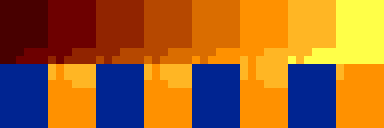
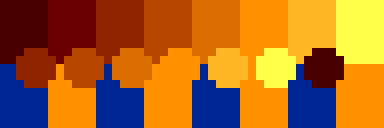
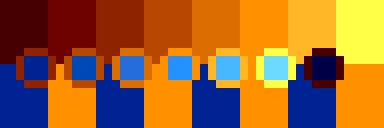
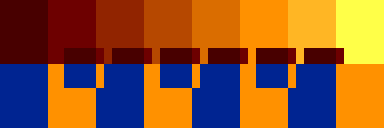
Each example paints one stroke of seven stamps, left to right, across the same Layer 2 scene. The top half is ramp 1, colours 16 to 23 from dark red to yellow. The bottom half alternates blue, colour 34 in ramp 2, with orange, colour 21 in ramp 1.
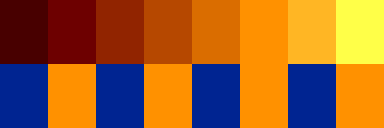
The custom brush is 5 × 5: a ring of colour 18 around a blue centre, with black corners as its transparent colour.

Smear, Blend and Smooth use the 5-pixel square preset brush. Shade and Cycle draw with foreground colour 18, in ramp 1, and the other modes with white.
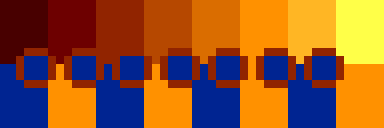
Matte
The brush’s ring and centre are painted; its black corners are not.
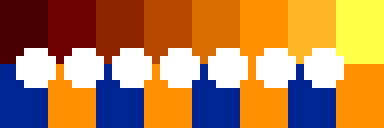
Colour
The brush’s shape is painted white, without its corners.
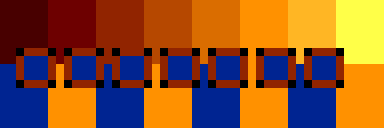
Opaque
Every brush pixel is painted, the black corners included.
Shade
Each colour of ramp 1 under the brush moves one step towards yellow: the red bands and the orange bands. The blue bands, in ramp 2, are unchanged.
Cycle
The first stamp paints colour 18, and each stamp after it one step further along ramp 1, wrapping from 23 back to 16.
MultiCycle
The ring steps along ramp 1 and the blue centre along ramp 2, one step each stamp.
Smear
Each stamp after the first paints the pixels from under the stamp before it.
Blend
Each stamp after the first mixes the colours from under the stamp before it with the colours beneath, taking the nearest palette colour to each mix.
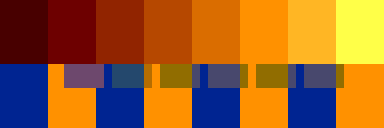
Smooth
Pixels where blue meets orange take the nearest palette colour to the average of their neighbours. Pixels with neighbours of one colour are unchanged.
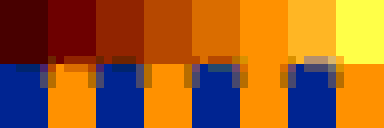
The examples are painted by Block’Ed’s own painting code, in a test that checks each one does what this page describes.
Attribute modes
In ULA and Hi-Colour a pixel is either INK or PAPER, so the effects work through the cell:
- Shade moves the INK or the PAPER of each touched cell one step, once per stamp.
- Smear, Blend and Smooth set each pixel to INK or PAPER, choosing with a 4 × 4 dither, and leave the cells’ attributes unchanged.
Colour ramps
Shade, Cycle and MultiCycle step along a colour ramp: a run of palette entries from a first to a last. Colour ramps… in the painting popover opens them.
| Control | Sets |
|---|---|
| Ramp | which of the six ramps is shown |
| Enable ramp | whether the ramp is used |
| First, Last | the run of entries: 0 to 7 in an attribute mode, otherwise 0 to the last palette entry |
| Reverse shading / cycling | the direction of each step |
A ramp starts at 0 to 7, not enabled. The active ramp is the first enabled ramp that contains the foreground colour. Shade stops at the ramp’s ends; Cycle wraps from the last entry to the first.
If ramp 1 runs from 16 to 23 and the foreground colour is 18, each Shade stamp moves the colours under the brush from 16 towards 23, and colours already at 23 stay there.
← User Guide · Next: Colours and Palettes »