
Maps
A map is a grid of tiles drawn from a tile part of the project, with layers of tiles, values and placed items. A project holds any number of maps, and several maps can share one tile part.
New map
Add Map, the map button above the sidebar, opens the New Map sheet. It is available once the project has a part with patterns: a tile part or a sprite part.
| Control | Chooses |
|---|---|
| Name | the map’s name, unique among the project’s maps |
| Width and Height | the size in tiles, 1 to 1024 each; the sheet starts at 40 × 32 |
| Tiles | the part whose patterns are the map’s tiles |
| Sprites | the sprite part a Sprites layer places, or None |
Create adds the map under Maps in the sidebar and opens it. A map’s context menu in the sidebar renames or deletes it.
A map refers to its parts by name. Renaming a part renames every map’s reference to it. A part a map uses cannot be deleted; the message names the map.
Map editor
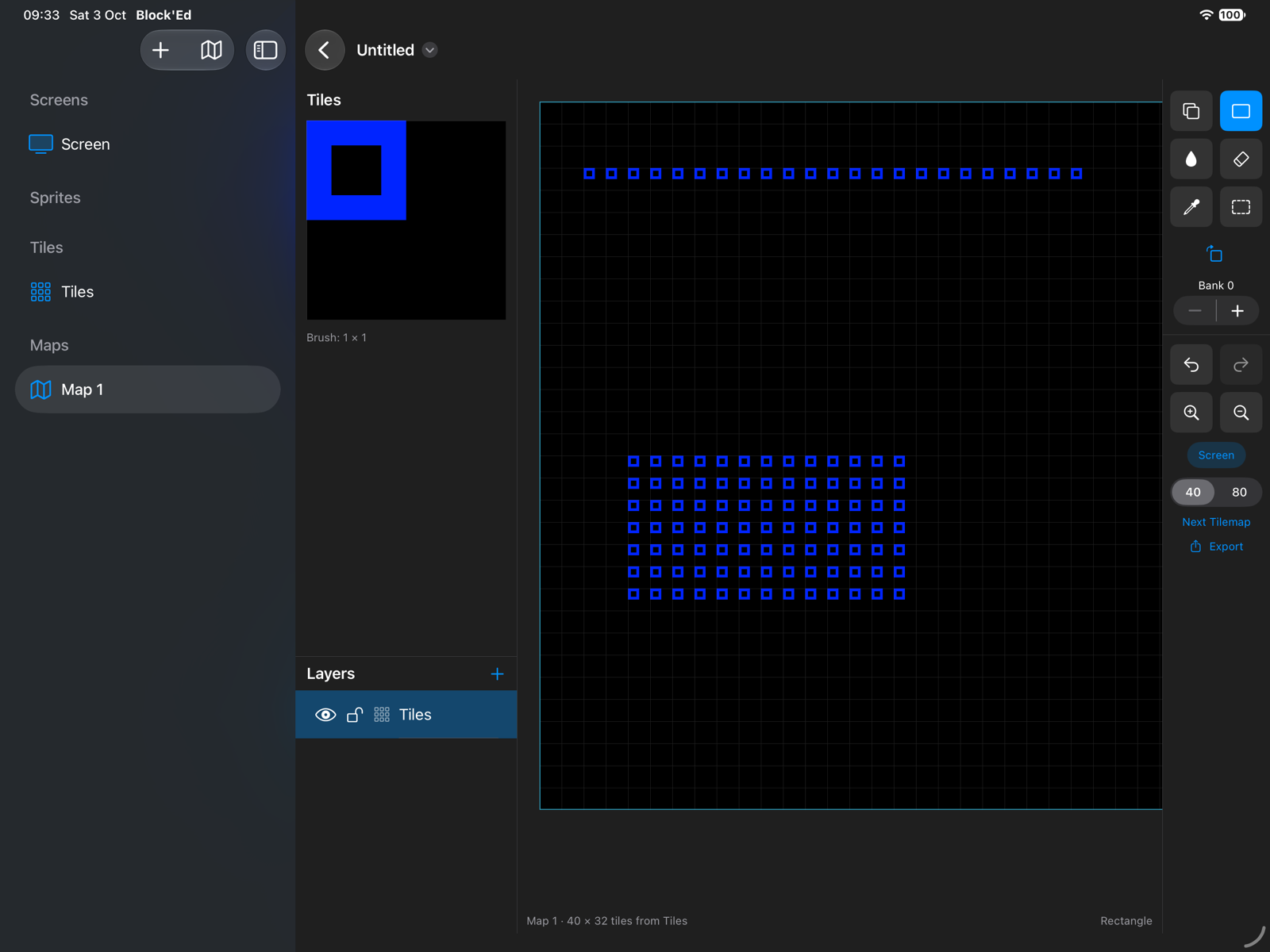
The map editor has four parts.
- The tile palette at the top left shows the tile part’s patterns, numbered left to right then top to bottom. A tap picks one tile; a drag picks a block of tiles. The tile part’s metatiles are listed beneath it.
- The layers panel below the palette lists the map’s layers.
- The map fills the middle. A cyan frame marks each screen of 40 × 32 or 80 × 32 tiles.
- The map toolstrip down the right holds the tools, the brush’s orientation and bank, undo and redo, zoom, the screen frame, the target and Export.
A change made to the tile part shows at once in every map that uses it.
Tools
On a Tiles layer:
| Tool | Does |
|---|---|
| Stamp | places the brush at each cell the drag crosses |
| Rectangle | fills the dragged rectangle with the brush, repeated from its top left |
| Fill | fills the cells joined to the one tapped that hold the same tile, with the brush repeated from that cell |
| Eraser | empties each cell the drag crosses |
| Picker | takes the tapped cell, or the dragged block, as the brush |
| Select | selects a rectangle; Copy takes it as the brush, Cut takes it and empties it, Delete empties it |
A drag is one undo step. Undo and Redo in the toolstrip, and Edit ▸ Undo (⌘Z) and Edit ▸ Redo (⇧⌘Z), step through the map’s changes with the rest of the window’s.
Orientation turns the brush, a block as a whole, to one of eight orientations: Normal, Rotate 90° Clockwise, Rotate 180°, Rotate 90° Anticlockwise, Flip Horizontal, Flip Vertical, Flip Diagonally and Flip Anti-Diagonally.
Bank sets the palette bank, 0 to 15, the brush draws in. It shows where the tile part is 4-bit tiles or 4-bit sprites.
Layers
A map starts with one Tiles layer. Layers draw in the panel’s order with the top of the list in front.
| Kind | Holds |
|---|---|
| Tiles | a tile, or nothing, in each cell |
| Values | a number in each cell, as described under Value layers |
| Objects | items drawn with tiles of the tile part |
| Sprites | items drawn with patterns of the sprite part |
+ above the panel adds a layer of the chosen kind in front of the others. A tap makes a layer active; the tools act on the active layer only, and the other layers are dimmed. The eye shows and hides a layer and the padlock locks it against edits. A layer is reordered by dragging it, and its context menu renames or deletes it. A map keeps at least one layer.
Tile properties
A tile part’s properties are values each of its tiles carries, such as Collision or Object. Tile properties, the tag button in a tile part’s toolbar, opens them. iPad only: in portrait the button is in the toolbar’s More menu.
A property is one of three kinds.
| Kind | Values |
|---|---|
| On or off | 0 or 1 |
| Choice | named values, given as a list separated by commas; the first is 0 |
| Number | 0 to 255 |
Select tiles on the canvas with the Select tool, then set each property for them under Selected Tiles. A tile no value is set for holds 0.
If Collision is a choice of None, Solid, Platform (horizontal), Platform (vertical) and Ladder, and tile 12 is set to Ladder, tile 12’s Collision is 4.
Save Selection as Metatile keeps the selected block of tiles as a named metatile. A metatile is listed under the map’s tile palette and picked as the brush with a tap.
Value layers
A Values layer holds a value for each cell, shown as a coloured square over the map: 1 red, 2 blue, 3 green and on through eight colours.
A Values layer follows one of the tile part’s properties, chosen at the top of the toolstrip. A cell nobody has painted holds the property’s value for the tile beneath it in the map’s first Tiles layer. A painted cell holds the painted value instead, and is marked with a white corner. The Eraser returns a cell to its tile’s value.
If the brick tile’s Collision is Solid, every brick cell of the layer is Solid without painting. Where bricks form a background the player walks in front of, those cells are painted None, and only they differ from the tile.
The value Stamp, Rectangle and Fill paint is chosen beneath the property. The Picker takes the value of the tapped cell.
Objects and Sprites
An Objects or Sprites layer holds items: a graphic at a position, with a name, a type and properties. With such a layer active, the palette shows the patterns its items are drawn with, and a tap picks the graphic.
| Tool | Does |
|---|---|
| Stamp | places an item at the tap and selects it |
| Select | selects the item tapped; a drag moves it |
| Eraser | removes the item tapped |
| Picker | takes the tapped item’s graphic |
Grid keeps placed and moved items on the tile grid; with it off they go to the pixel. Edit Item… sets the selected item’s name, type, position and properties, each property a name and a text value. Delete Item removes it.
Target rules
A map is held to the limits of the hardware that draws it. Its target follows its tile part: 4-bit tiles target the Next tilemap, and every other mode Layer 2. Target in the toolstrip sets it on the map instead, and turns on 512-tile mode.
| Target | Limits checked |
|---|---|
| Next Tilemap | 8 × 8 tiles at 4 bits; at most 256 different tiles, or 512 in 512-tile mode, numbered below that; tiles 0 to the highest used, at 32 bytes each, and one screen of two-byte entries within the 16 KB of bank 5 |
| Layer 2 | none on tiles |
| any, with Sprites layers | at most 128 sprites; sprite patterns within 16 KB, 64 at 8 bits or 128 at 4 bits |
An edit that breaks a limit is made. The map view lists each broken limit above the map and outlines the cells and items that break it in red. Export is refused, naming the first limit, until it is fixed.
If a 4-bit tile map without 512-tile mode uses a 257th different tile, the cells of that tile are outlined and the list says the map uses 257 different tiles where the Next tilemap holds 256.
Exports
Export in the toolstrip writes the map.
| Export | Writes |
|---|---|
| Tilemap | the active Tiles layer, or the first, in the Next’s two-byte entry format |
| Tilemap without Attributes | the same layer, one byte per entry |
| Value Layer | the active Values layer, or the first, one byte per cell as the values resolve |
| Tile Properties | one byte per tile, the properties packed into it |
| Tiled Map | a folder of a Tiled JSON map and its tileset images |
| LDtk Project | a folder of an LDtk project and its tileset images |
| Block’Ed Map JSON | the whole map as JSON |
Each format is specified on File Formats.
LDtk mirrors tiles but does not rotate them, so a map with a rotated tile is refused for LDtk. Neither Tiled nor LDtk has palette banks; their tileset images show each tile in its own bank.
← User Guide · Next: Drawing Tools »