Getting Started
From opening Block’Ed to a saved drawing.
New document
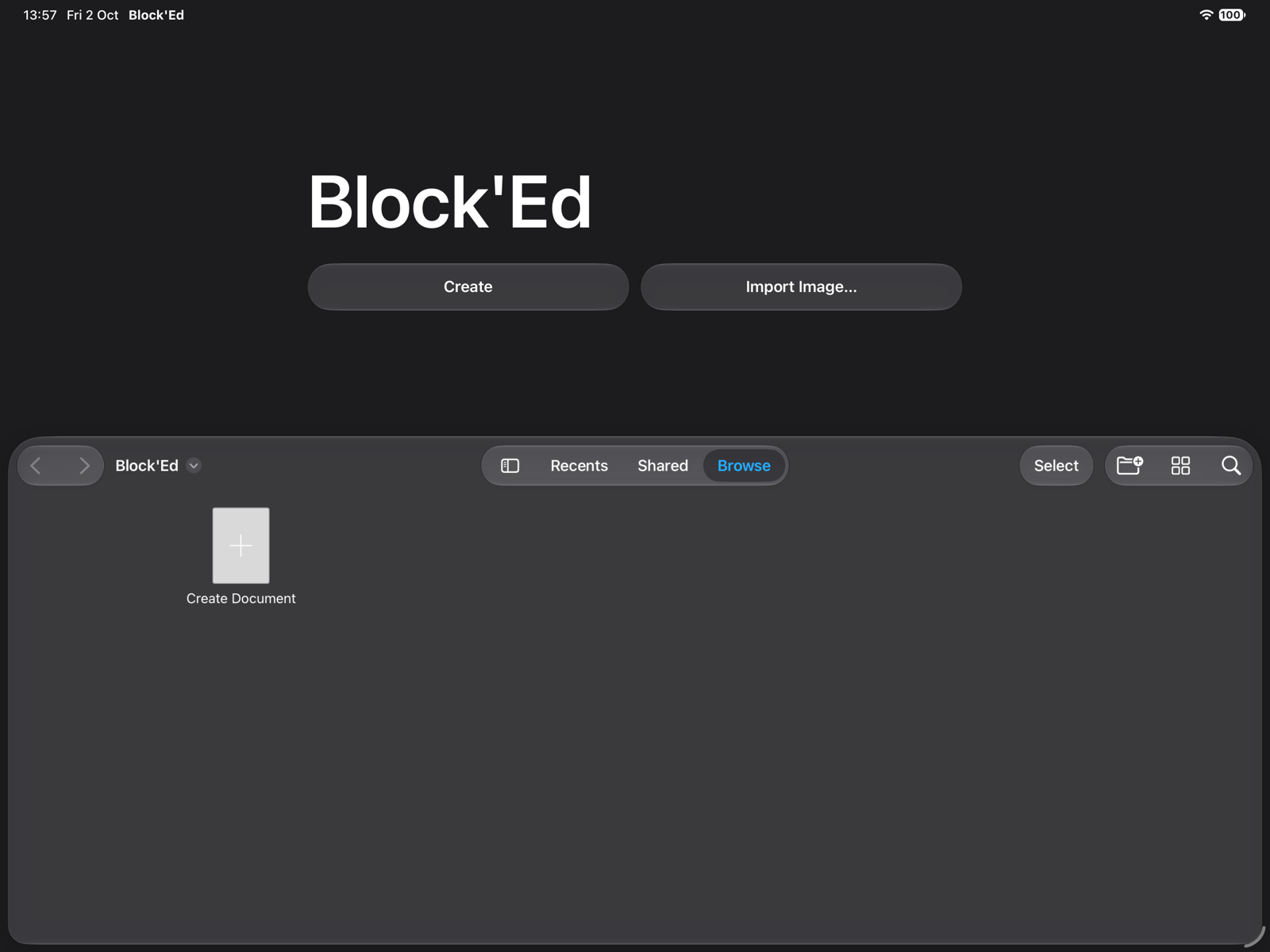
iPad only: Block’Ed opens on its launch screen. Create opens the New Document sheet, and Import Image… starts from a picture instead; see Importing Images. The document browser below the buttons opens a document you already have.
Mac only: File ▸ New opens a new window with the New Document sheet.
The New Document sheet chooses what the document is drawn for.
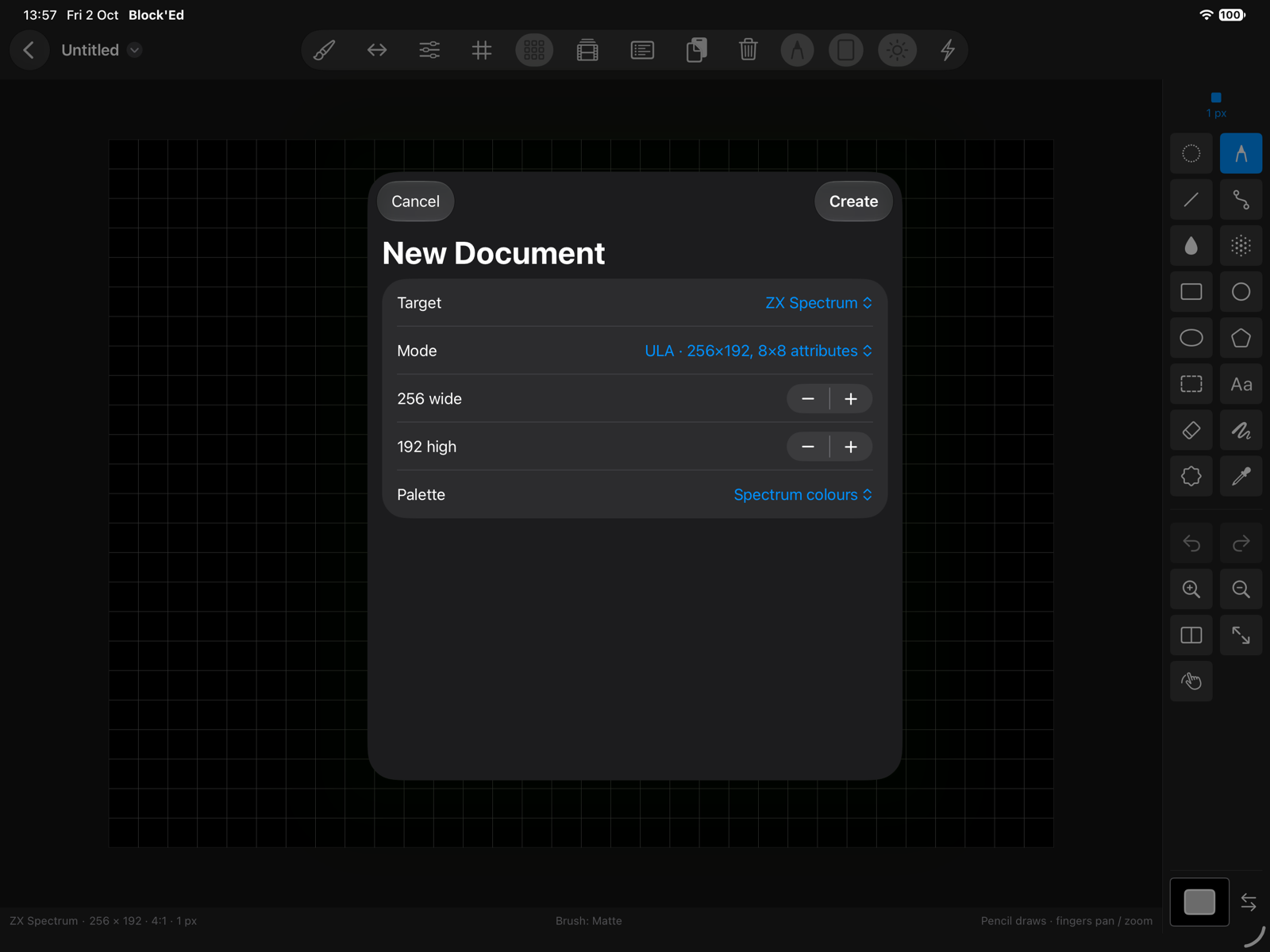
| Control | Chooses |
|---|---|
| Target | the machine: ZX Spectrum, Timex or ZX Spectrum Next |
| Mode | one of the machine’s screen modes |
| Width and height | the canvas size, in steps of the mode’s cell or pattern |
| Palette | the colours: Spectrum colours or ULA+ in an attribute mode, or the hardware default, a preset or a library palette in a Next mode |
Create makes the document. The sheet starts from the choices you made last time.
Each machine, mode and size limit is described on Documents and Modes.
Editor
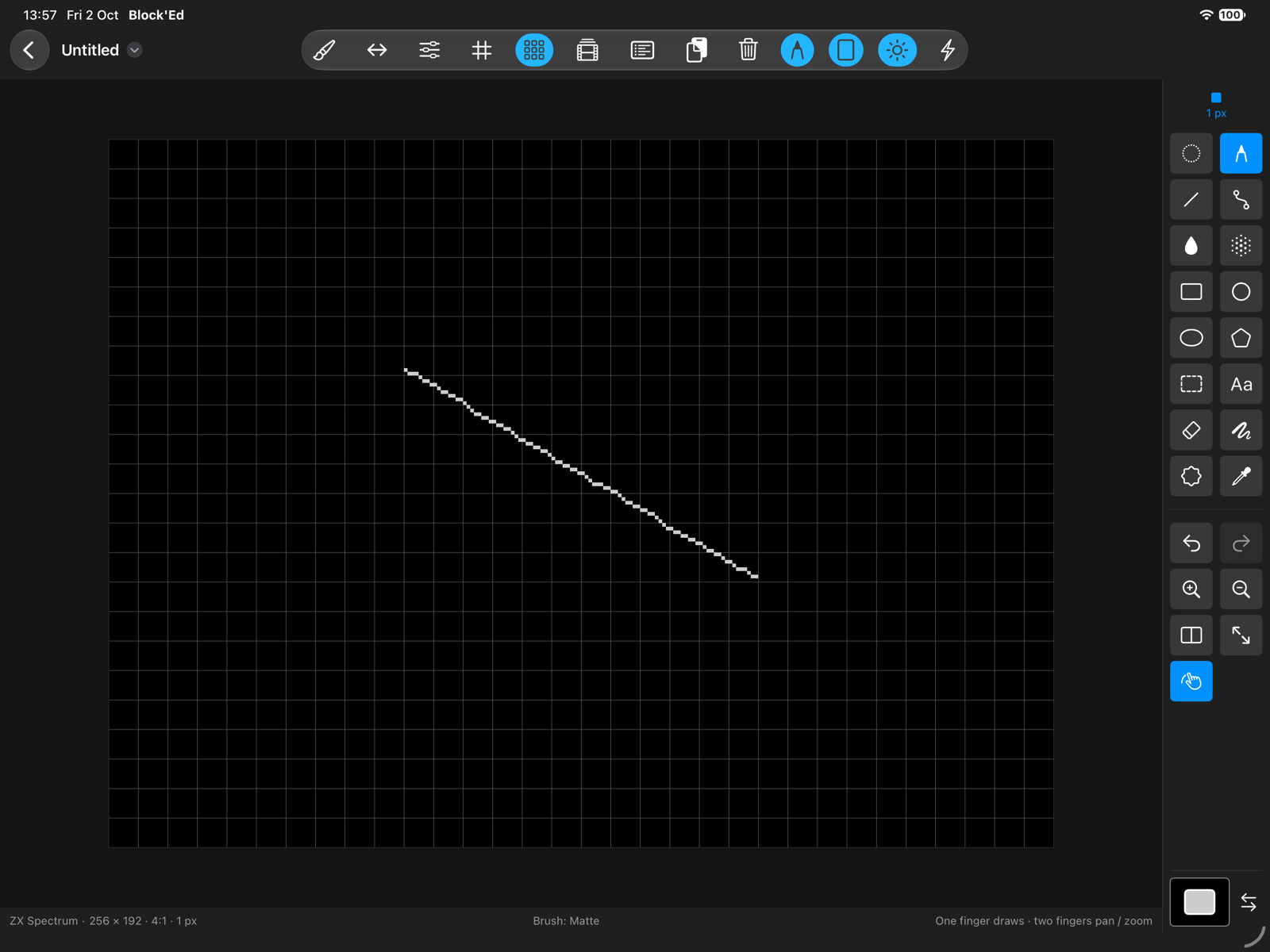
The editor has four parts.
- The canvas fills the middle.
- The toolbar across the top holds the current tool’s options, symmetry, the grids, the frame bar and asset list, paste and clear. In an attribute mode it also holds the INK, PAPER, BRIGHT and FLASH write switches.
- The toolstrip down the right holds the brush, the tools, undo and redo, zoom, the split magnifier, Fit and, on iPad, finger drawing. The colour well at its foot shows the foreground colour over the background colour.
- The status line along the bottom shows the mode, the canvas size, the zoom ratio and the brush size, then a hint for the current tool and how touches draw.
The sidebar button at the left of the toolbar shows the document’s screens, sprites and tiles; see Projects.
Drawing
The Pencil tool is selected in a new document. Draw on the canvas with Apple Pencil or a mouse.
iPad only: A finger pans the canvas and two fingers zoom it, unless Finger drawing in the toolstrip is on. With it on, one finger draws and two fingers pan and zoom. See Apple Pencil and Mac Input.
Undo and Redo in the toolstrip step back and forward through changes, as do Edit ▸ Undo (⌘Z) and Edit ▸ Redo (⇧⌘Z).
Saving
A document is a .blked file, saved as you draw. iPad only: There is no Save command; the back button returns to the document browser. Mac only: File ▸ Save names the file the first time.
To use the artwork elsewhere, export it; see Exporting.
← User Guide · Next: Documents and Modes »