
Brushes
The brush is the shape a tool paints with: a square or round preset, or a custom brush picked up from the artwork.
Brush settings
The button at the top of the toolstrip shows the brush size and opens the Brush popover.
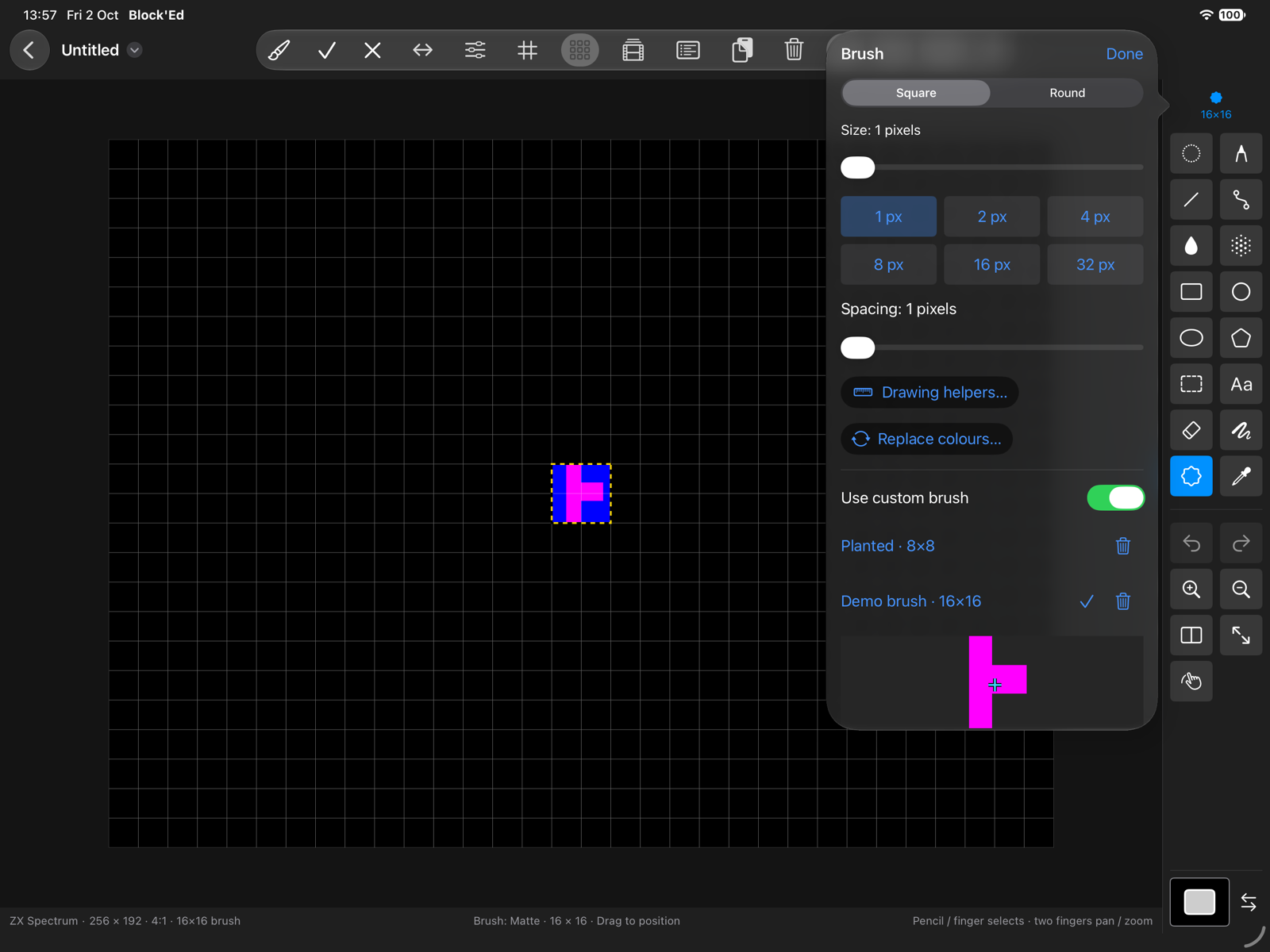
| Control | Sets |
|---|---|
| Shape | Square or Round |
| Size | 1 to 32 pixels, with buttons for 1, 2, 4, 8, 16 and 32 |
| Spacing | the distance between stamps along a stroke, 1 to 64 pixels |
| Use custom brush | paints with the chosen saved brush in place of the preset |
Brush ▸ Increase Size (]) and Brush ▸ Decrease Size ([) change the size by one pixel, within 1 to 32.
Pencil and Line use the spacing; shape outlines use the brush; the eraser always uses the square or round preset; fills use single pixels.
Pressure
Apple Pencil pressure, and tablet pressure on the Mac, scale the brush between 1 pixel and the chosen size. A finger, a mouse and a trackpad press at the full size.
If the size is 8, a stroke at half pressure paints a 4-pixel brush. If the size is 1, pressure has no effect.
Custom brushes
A custom brush is a piece of artwork used as a brush. To make one:
- Select the artwork with the Select tool; see Selections.
- Choose Pick Up as Brush from the selection options, or Brush ▸ Pick Up Selection.
The brush is saved as Brush N, chosen, and the Stamp tool selected. A freeform selection keeps its outline as the brush’s shape.
Saved brushes are listed in the Brush popover as name · width×height, each with a delete button. A brush is offered only in modes it fits: attribute brushes in attribute modes with the same cell size, palette brushes in palette and pattern modes. Brushes are kept with the app, not with a document.
With a custom brush chosen, the popover also sets:
- Flip H, Flip V and Rotate 90°, also in the Brush menu.
- Brush handle, the point of the brush under the pointer: Centre, a Corner, or Handle X and Handle Y.
- Transparent PAPER in an attribute mode, or Transparent index and its Index in other modes: the colour left out when the brush paints.
- Perspective on or off, and its Settings…; see Drawing Helpers.
Transform
Resize / rotate / shear / bend… in the Brush popover, or Brush ▸ Transform Brush…, opens Transform brush.
| Transform | Controls |
|---|---|
| Resize / stretch | Width and Height up to 640 pixels, Keep proportions, ½ size and 2× size |
| Rotate | Angle, −180° to 180°, with buttons for −90°, −45°, 0°, 45° and 90° |
| Shear horizontal, Shear vertical | Amount, −100% to 100% |
| Bend horizontal, Bend vertical | Amount, −100% to 100% |
Apply saves the result as a new brush named source · transform, and the source brush is kept. If the result would be wider or taller than 640 pixels, it is refused.
Stamp
The Stamp tool places the custom brush once. A press shows it at the pointer, and dragging from inside it moves it. Apply paints it and Cancel discards it. In an attribute mode the stamp moves in whole cells.
At least one row and column of the brush stays on the canvas. With no custom brush, the Stamp tool reports Pick up a selection or choose a saved custom brush first.
← User Guide · Next: Painting Modes »