
Animation
An asset is a sequence of frames, played at one delay in one of three loop modes.
Frame bar
The toolbar’s Frames button shows the frame bar under the canvas. The document remembers whether it is showing.
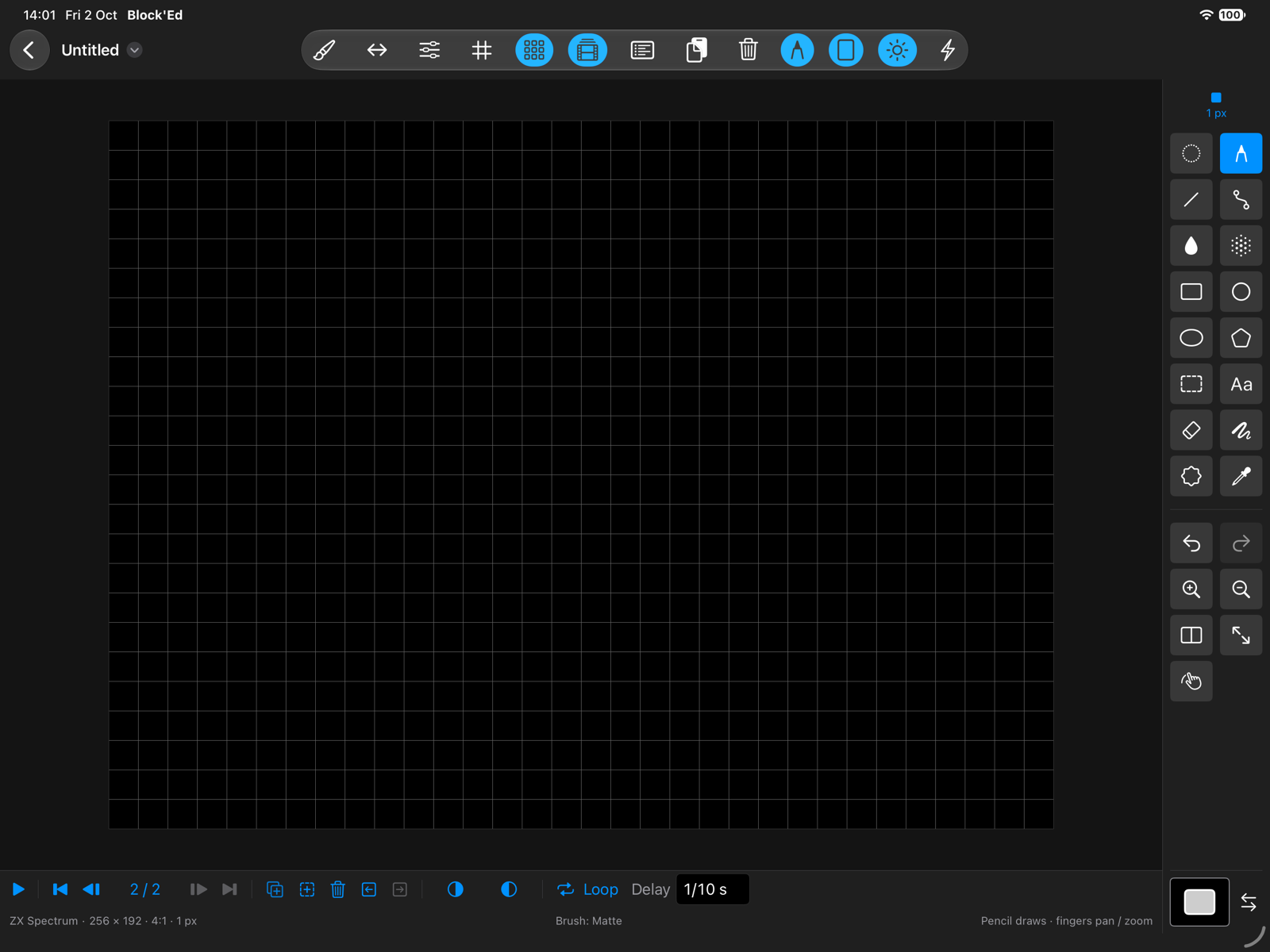
| Control | Does |
|---|---|
| Play, Stop | plays the frames from frame 1; Stop leaves the frame showing as the current frame |
| First frame, Previous frame, Next frame, Last frame | moves to that frame |
| N / M | the current frame and the number of frames; tapping it shows every frame to choose from |
| Add frame | inserts a copy of the current frame after it |
| Add blank frame | inserts an empty frame after the current one |
| Delete frame | removes the current frame; not with one frame |
| Move frame left, Move frame right | swaps the frame with its neighbour |
| Onion previous, Onion next | shows the previous frame tinted red or the next frame tinted green beneath the current one |
| Loop mode | Once, Loop or Ping-pong |
| Delay | the time each frame shows for |
Adding, deleting and moving a frame, and changing the loop mode or delay, are each one undo step. Choosing a frame is not.
Loop modes
| Mode | Plays |
|---|---|
| Once | frame 1 to the last, then stops on the last |
| Loop | frame 1 to the last, repeatedly |
| Ping-pong | frame 1 to the last, back to frame 2, repeatedly |
A new document loops.
With Onion next on at the last frame, the next frame shown is frame 1 in Loop mode, and none in the other modes. Frame 1 has no previous frame.
Delay
Every frame of an asset shows for the same delay. The Delay field takes milliseconds, 40 or 40 ms, or a fraction of a second, 1/25 or 1/25 s. An entry it cannot read, or a zero, leaves the delay unchanged. A new document’s delay is 1/10 s.
If the delay is 1/25 s, a four-frame loop plays at 25 frames a second and repeats six and a quarter times a second.
While playing
Drawing, Undo and Redo, Clear, cut and paste, and changes to frames and assets wait until playback stops. The loop mode and the delay can be changed while playing.
← User Guide · Next: Assets »